1.2.1 Installing ROS
After Ubuntu installation is complete, you can proceed to install the ROS operating system. The general steps are as follows:
- Configure Ubuntu's software and updates;
- Set up the installation source;
- Set up the key;
- Installation;
- Configure environment variables.
1. Configure Ubuntu's Software and Updates
Configure Ubuntu's software and updates to allow installation of unauthorized software.
First, open the "Software & Updates" dialog. You can search for it using the Ubuntu search button.
After opening, configure according to the diagram below (ensure "restricted", "universe", and "multiverse" are checked).
2.Set Installation Source
Default official installation source:
sudo sh -c 'echo "deb http://packages.ros.org/ros/ubuntu $(lsb_release -sc) main" > /etc/apt/sources.list.d/ros-latest.list'PS:
- After pressing Enter, you may need to enter the administrator password.
3. Set Key
sudo apt-key adv --keyserver 'hkp://keyserver.ubuntu.com:80' --recv-key C1CF6E31E6BADE8868B172B4F42ED6FBAB17C6544. Installation
First, you need to update apt (previously apt-get; the official recommendation is to use apt instead of apt-get). apt is a tool used for searching, installing, upgrading, and uninstalling software or operating systems from internet repositories.
sudo apt updatePlease wait...
Then, install the desired type of ROS. There are multiple variants of ROS: Desktop-Full, Desktop, and ROS-Base. Here, we will install the commonly used Desktop-Full (officially recommended) version, which includes: ROS, rqt, rviz, robot-generic libraries, 2D/3D simulators, navigation, and 2D/3D perception.
sudo apt install ros-noetic-desktop-fullPlease wait......(This may take some time)
Friendly reminder: Due to network connectivity issues causing timeouts, the installation may fail as shown below: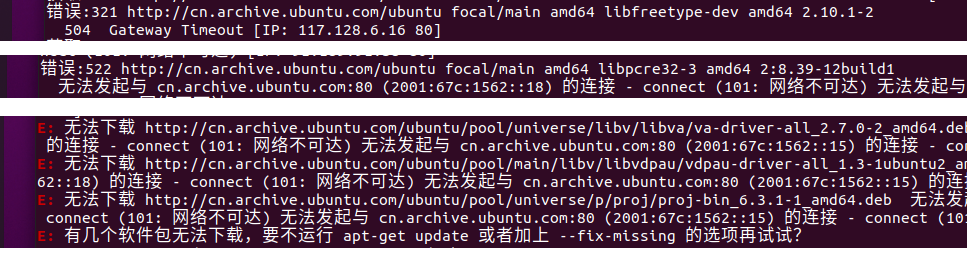 You can repeatedly execute the update and installation commands until successful.
5. Configure Environment Variables
Configure environment variables to facilitate using ROS in any terminal.
echo "source /opt/ros/noetic/setup.bash" >> ~/.bashrc
source ~/.bashrc
Uninstallation
If you need to uninstall ROS, you can use the following command:
sudo apt remove ros-noetic-*Note: In ROS Noetic, there is no need to build package dependencies, and there are no rosdep-related installation or configuration steps.
See also:http://wiki.ros.org/noetic/Installation/Ubuntu。
Postscript
6. Install Build Dependencies
When Noetic was initially released, it differed slightly from previous historical versions by not requiring the build dependency installation step. As Noetic continued to be refined, the official documentation has now supplemented this step.
First, install the tools required for handling build dependencies:
sudo apt install python3-rosdep python3-rosinstall python3-rosinstall-generator python3-wstool build-essentialIn ROS, initializing rosdep (which handles installation of system dependencies) is required before using many tools — this was actually already completed in the previous step.
sudo apt install python3-rosdepInitializing rosdep
sudo rosdep init
rosdep update
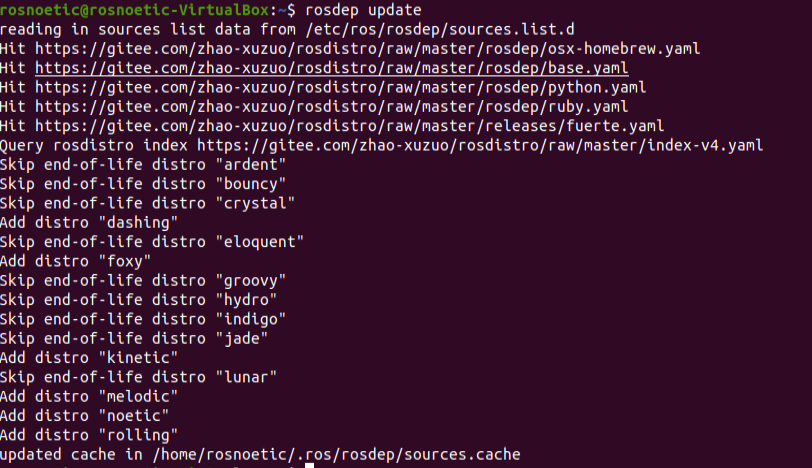
If everything proceeds smoothly, the output for rosdep initialization and update should appear as follows: